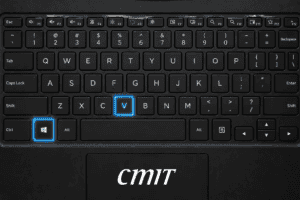

Here is one tip for my Windows friends: Windows clipboard history. I am betting one hundred cups of coffee that it will make your life better, and if you try it and it does not help, I will buy you one. The bet closes at the end of November or when the hundred cups are gone. Tell me wherever you found this post, or email me at dusher@cmitsolutions.com.
It happened to me again one morning last week. I had typed a paragraph that I wanted to add to a document. I copied it and deleted it from the page so I could type in some additional information, planning to paste it back afterward. Meanwhile, I needed to enter a password on a website, so I highlighted the password, copied it, and pasted it into the login box. Then I went back to work.
Ten minutes later, I went to paste my paragraph and got my password instead. I told my wife, who was in the room, and she said, “I hate when that happens.” Then it dawned on me that I had read about a Windows feature for exactly this problem. A quick search found it, but I had not turned it on. I lost this round, and I will not lose the next one.
How to Turn On Windows Clipboard History
Turning it on is simple. Hold the Windows key and press V. The first time, a small window asks whether you want to turn on Windows clipboard history, and you click Turn on. From then on, the same shortcut opens a panel listing the last twenty-five things you copied, and you click the one you want to paste. It works on both Windows 10 and Windows 11.
Two details make the feature more useful. The history clears whenever you restart the computer, so do not treat it as storage. If you retype the same thing constantly, such as a business address or a standard reply, you can pin it, and pinned items survive a restart.
The Catch: It Remembers Passwords Too
There is one catch, and my morning illustrates it. Windows clipboard history keeps whatever you copy, and that includes passwords. Had the feature been running, my password would have sat in that list too, readable by anyone at my unlocked computer who pressed the same two keys.
Some password managers tell Windows to skip their copies, but not all of them do. Assume that a copied password may linger until the next restart.
I would also leave the sync option off unless you have a specific reason for it. Sync copies your history to the cloud and to your other devices.
Technology should remove aggravation, not manufacture it. Two keys and one click are a fair price for ending an everyday frustration.
Until next time, keep IT simple.
Dave