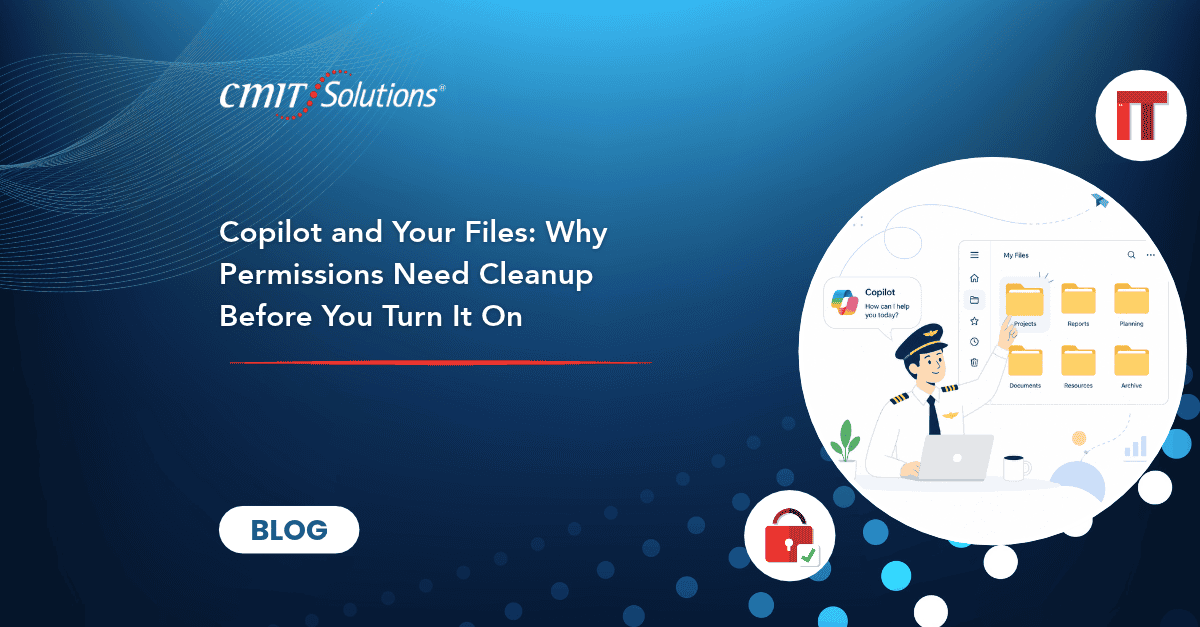
Microsoft 365 Copilot is one of the most talked about business tools in Silicon Valley, Pleasanton, and the wider Tri-Valley. Leaders see the promise: faster meeting summaries, instant first drafts, quick answers from years of company documents, and less time hunting for files. Many of them are ready to buy licenses and flip the switch.
Here is the catch that too few people hear until it is too late. Copilot does not create new access to your data. It uses the access your people already have. If an employee can technically open a file, Copilot can find it, summarize it, and quote from it in seconds. Every forgotten shared folder, every overly broad Teams site, and every old “anyone with the link” share suddenly becomes easy to discover through a simple chat prompt.
This guide explains why permissions cleanup should come before any Copilot rollout, what a safe preparation process looks like, and how to keep your files protected once the tool is live. It is written for business owners, operations leaders, and IT managers who want the benefits of AI without a preventable data exposure.
What Copilot Actually Does With Your Files
To understand the risk, it helps to understand the mechanism. Copilot works by combining a large language model with your organization’s own content. When a user asks a question, Copilot searches the files, emails, chats, meetings, and calendar items that the user is permitted to see. It then builds an answer from what it finds.
Three points matter most:
- Copilot respects existing permissions. It does not bypass security controls. It simply makes everything a user can reach far more visible.
- Search becomes conversational. In the past, a file buried five folders deep in an old site might never be found. Now a plain language question can surface immediately.
- Answers can mix sources. A single response may pull from a spreadsheet, an email thread, and a presentation, combining details that were never meant to be seen together.
This is not a flaw in the tool. It is a feature working exactly as designed. The problem is that most organizations have years of accumulated permission sprawl that nobody noticed, because nobody was actively searching for it. Copilot changes that overnight.
The Oversharing Problem in Plain Language
Oversharing happens when more people can access a file than should. It is almost never the result of one dramatic mistake. It builds slowly through ordinary habits.
Consider how it develops in a typical Bay Area company:
- A project team creates a SharePoint site and sets it to open access so collaboration is easy
- A manager shares a budget spreadsheet with a link that anyone in the company can open
- A departing employee’s OneDrive keeps shared folders that nobody reviews
- A Teams channel is created as public, then fills up with sensitive attachments
- A contractor receives broad access for a short project and keeps it for years
- An executive shares board materials with “everyone” instead of a named group because it was faster
Each of these decisions made sense at the time. Together they form a hidden map of exposure. Before Copilot, that map mostly stayed buried. After Copilot, an intern could ask “what are the salary bands for senior engineers” and get an answer pulled from an HR file that was accidentally left open.
Real World Scenarios Worth Worrying About
Abstract risk is easy to dismiss, so here are examples of how oversharing plays out once Copilot is active.
Compensation and HR Data
A payroll spreadsheet stored in a general finance folder was shared widely years ago. An employee asks Copilot to summarize compensation trends and receives details about colleagues. No hacker was involved. The permissions simply allowed it.
Legal and Contract Documents
Draft agreements, settlement notes, and vendor negotiations often sit in folders with loose access. Copilot can surface language from those files in response to unrelated questions, which creates confidentiality problems and potential legal exposure.
Customer and Client Records
Professional services firms hold client financials, health details, or case information. A permissions gap can let staff who have no business need see files for clients they do not serve. Law firms in particular have strict duties here, which is why the principles in client confidentiality protection apply well beyond the legal industry.
Product Roadmaps and Source Material
Technology and engineering companies keep design documents, product plans, and research notes in shared repositories. If those repositories are open to the whole organization, Copilot makes the contents easy to extract and repeat.
Merger, Funding, and Board Materials
Documents related to acquisitions, fundraising, and board decisions often carry the highest sensitivity. A leaked summary, even one assembled innocently, can create serious consequences.
Why Cleanup Must Come Before Activation
Some leaders assume they can turn Copilot on and fix permissions later. That approach carries real risks.
- Exposure begins immediately. The moment licensed users start prompting, they can surface content they were never meant to see.
- You cannot easily undo what someone has read. If an employee views sensitive information through a Copilot answer, you cannot erase that knowledge.
- Trust is hard to rebuild. One early incident can make staff and executives lose confidence in the entire AI program.
- Compliance obligations apply regardless. Regulations around privacy, financial data, and health information do not pause while you tidy up.
Fixing the foundation first is cheaper, faster, and far less stressful than responding to an incident. Many organizations that plan this carefully, such as those following guidance on Copilot governance basics, find that the cleanup also improves security and efficiency well beyond the AI project.
A Step by Step Permissions Cleanup Plan
A good cleanup is organized, measurable, and repeatable. The following sequence works for most small and midsize businesses.
Step 1: Take Inventory of Where Data Lives
You cannot protect what you cannot see. Begin by listing the main repositories:
- SharePoint sites and Teams workspaces
- OneDrive accounts, especially for senior leaders and departed staff
- Shared mailboxes and public folders
- File servers and legacy network drives that sync to the cloud
- Third party storage tools that connect to Microsoft 365
Do not forget older systems. Data on aging hardware risks often gets migrated to the cloud with its permissions intact, which carries old mistakes into a new environment.
Step 2: Identify Your Most Sensitive Content
Not all data deserves equal attention. Decide what must be protected most strongly, then focus effort there first.
- Employee records and compensation
- Financial statements and forecasts
- Customer contracts and personal information
- Legal files and privileged communications
- Intellectual property and source material
- Strategic plans, M&A materials, and board documents
If you handle regulated data, a structured review supported by compliance support services can help translate legal requirements into specific technical controls.
Step 3: Run Oversharing Assessments
Microsoft provides reporting tools that help find content with broad access, though the exact features available depend on your licensing. Reports can highlight sites shared with large groups, files with open links, and content that has not been reviewed in a long time. A skilled IT team can combine these reports with manual spot checks to build a prioritized list of problem areas.
Look specifically for:
- Sites or folders shared with “Everyone” or “Everyone except external users”
- Sharing links that allow anyone with the link to open a file
- Large security groups with unclear membership
- Guest and external user access that was never removed
- Sensitive documents stored in general purpose sites
Step 4: Fix Sharing Links and Site Access
Start with the highest risk items and work down. Typical remediation includes:
- Replacing open links with named user or group access
- Converting public Teams and sites to private where appropriate
- Removing broad groups from sensitive libraries
- Setting sensible defaults for new sites so they start private
- Expiring guest access automatically after a set period
This is not a one afternoon task for most companies. Plan for it to take weeks, with owners assigned for each major repository.

Step 5: Apply Least Privilege Access
Least privilege means people receive only the access their role requires. Define standard roles and map them to groups, then grant access through those groups rather than to individuals. Group based access is easier to audit and far simpler to change when someone moves teams.
Strong identity practices support this effort. Organizations adopting zero trust security principles already verify users and devices continuously and limit access by default, which makes Copilot readiness much easier.
Step 6: Label and Classify Sensitive Documents
Sensitivity labels let you mark documents as confidential, restricted, or internal and attach protections that travel with the file. Labels can enforce encryption, limit sharing, and signal to Copilot and other tools how content should be treated. Automatic labeling rules can find common patterns such as account numbers or personal identifiers and apply protections without relying on every employee to remember.
Step 7: Add Data Loss Prevention Policies
Data loss prevention rules detect when sensitive information is being shared or copied inappropriately. They add a second layer of defense if a permission mistake slips through. Policies can warn users, block actions, or alert administrators, depending on the severity.
Step 8: Clean Up Old and Stale Data
Old content is both a risk and a distraction. Archive or delete what you no longer need according to your retention policies. Fewer outdated files means fewer chances for Copilot to surface stale, misleading, or sensitive material. Stale data also lowers answer quality, because the AI may draw from obsolete documents.
Step 9: Pilot With a Small Group
Do not roll out to the entire company on day one. Choose a small pilot group with varied roles, and let them test real prompts. Ask them to report anything that surprises them, including answers that mention content they did not expect to see. These surprises are valuable signals that point to remaining permission gaps.
Step 10: Monitor, Audit, and Repeat
Cleanup is not a one time event. New sites, new hires, and new projects constantly create new exposure. Schedule regular access reviews, track sharing activity, and review audit logs. Quarterly reviews work well for many businesses, with more frequent checks for the most sensitive areas.
The People Side of Permissions
Technology controls alone will not solve oversharing. Behavior matters just as much.
Train Employees on Sharing Habits
Staff should understand how to share files safely, why open links are risky, and what to do when they notice content that seems inappropriately accessible. Short, practical training sessions work better than long policy documents.
Assign Data Owners
Every major repository should have a named owner who understands the content and approves access requests. Without ownership, permissions drift and nobody feels responsible for cleaning them up.
Set Clear Rules for AI Use
Employees need guidance on what they may and may not enter into AI tools, how to verify answers, and how to report concerns. Define acceptable use in plain language, and revisit the policy as the tools change.
Prepare Your Response Plan
Decide in advance what happens if someone discovers an exposure. Who investigates, who notifies leadership, and how are affected files secured? A written response plan reduces confusion when time matters. Related risks such as insider threat risks become more pressing when AI makes legitimate access far more powerful.
Identity and Access: The Foundation Under Everything
Because Copilot inherits user permissions, the security of each user account becomes even more important. If a criminal takes over an employee’s account, they inherit not only that person’s files but also Copilot’s ability to search and summarize them at scale.
Priority protections include:
- Multifactor authentication on every account, with phishing resistant methods where possible
- Conditional access policies that check device health and location
- Prompt removal of access when staff leave or change roles
- Privileged account controls for administrators
- Monitoring for unusual sign in behavior
Attackers are already adapting. Modern AI powered phishing campaigns create convincing messages that trick even careful employees into giving up credentials. Once inside a mailbox, criminals use techniques described in email account takeover attacks to quietly read messages and move deeper into the environment. Add Copilot to that scenario and a single compromised account could expose far more information, far faster.
Offboarding is another common gap. Accounts that linger after someone leaves are open doors. A consistent IT offboarding checklist ensures access, devices, and shared files are handled the same day an employee departs.
Building the Right Technology Foundation
A smooth Copilot rollout depends on a healthy overall IT environment. Several areas deserve attention before and during deployment.
Proactive Management and Monitoring
Permissions drift constantly, and manual reviews rarely keep pace. Ongoing oversight from managed IT services can provide continuous monitoring, regular access reviews, patching, and policy enforcement so the environment stays clean after the initial project ends.
Planning and Roadmaps
AI adoption touches licensing, security, training, and budgeting. Thoughtful IT strategy guidance helps leaders sequence these efforts, avoid wasted spending, and connect technology choices to business goals.
Cloud Configuration
Microsoft 365 settings determine how files are shared, stored, and protected. Careful cloud services planning ensures tenant level defaults, external sharing rules, and data location choices align with your risk tolerance. Where data lives also affects regulatory duties, as explained in this look at data sovereignty and compliance.
Productivity Application Setup
Teams, SharePoint, OneDrive, Outlook, and the rest of the suite all influence what Copilot can see. Proper productivity application management keeps these tools configured consistently so collaboration stays easy without becoming careless.
Network and Device Protection
Copilot usage happens on laptops, phones, and home networks. Solid network management services and endpoint security protect the devices and connections that employees use to reach sensitive data.
Backup and Recovery
Permission cleanup involves deleting, moving, and restructuring files, which creates a small risk of accidental loss. A dependable data backup solution lets you recover anything that is changed or removed by mistake. Backups also protect against attacks, and understanding ransomware recovery planning shows how quickly your organization could truly bounce back. A written disaster recovery plan rounds out your readiness.
Help When Users Need It
Rollouts create questions. Employees will wonder why a file disappeared from view or why they lost access to a site. Responsive IT support help desk keeps the transition smooth and prevents staff from creating risky workarounds out of frustration.
Hardware and Licensing
Copilot licensing, device upgrades, and software purchases all need coordination. Using IT procurement services helps businesses acquire the right licenses and equipment without overpaying or buying incompatible tools.
Collaboration and Meetings
Copilot summarizes meetings, calls, and chats, so your communication platform matters. Well configured unified communications platform settings control who can record, transcribe, and access meeting content.
Connected Apps, Plugins, and Extensions
Copilot can connect to other business applications and data sources. Each connection extends what the AI can reach, and every integration is another place where permissions must be checked. Review which third party apps have access to your tenant, remove those you no longer use, and verify what data each integration can read or write. The risks of unmanaged connections are explored in this overview of API security risks.
Development teams face an additional concern, since AI tools used for coding can introduce flaws or leak secrets. Understanding AI coding assistant risks helps technical leaders set sensible guardrails.
Industry Considerations
Every sector has its own sensitive data and obligations. Here is how permission cleanup applies in several common Bay Area industries.
- Accounting and tax firms: Client financial records, Social Security numbers, and equity compensation details require strict separation. Practices preparing for filing season can learn why AI ready cybersecurity belongs on the planning list.
- Finance and insurance: Underwriting files and customer data fall under strong regulatory expectations, and carriers increasingly ask about controls. Review current cyber insurance requirements before renewal.
- Healthcare: Patient information demands tight access controls, audit trails, and careful handling of any AI tool.
- Legal: Privileged communications and client matters require strict ethical walls inside the document system.
- Engineering and technology: Source code, designs, and research are the crown jewels and need clear boundaries.
- Construction and manufacturing: Bids, plans, and supplier terms should be limited to project teams.
- Nonprofits: Donor and beneficiary data deserves care, even when budgets are limited.
Legacy Habits That Make Cleanup Harder
Some organizations find their permission problems run deeper than expected. Common culprits include:
- Years of ad hoc sharing with no naming or ownership standards
- Migrations from old file servers that copied permissions without review
- Mergers that combined two environments without reconciling access
- Heavy use of personal accounts and unmanaged devices
- Outdated systems that nobody wants to touch
Neglected systems also cost money beyond the security risk. The outdated IT costs that build up over time often justify a modernization project alongside the Copilot effort.
Measuring Success
How will you know the cleanup is working? Track a handful of simple indicators:
- Number of sites and files shared with broad groups, trending downward
- Count of open sharing links, trending toward zero for sensitive content
- Percentage of sensitive documents carrying a label
- Time to remove access after a staff change
- Number of access reviews completed on schedule
- Pilot user reports of unexpected content, trending toward none
Share these results with leadership. Clear metrics make it easier to justify continued investment and demonstrate due diligence to auditors and insurers.

A Readiness Checklist Before You Turn Copilot On
Use this list as a final gate before activating licenses.
- Inventory of major data repositories is complete
- Sensitive content categories are defined and located
- Broad “Everyone” access has been removed from sensitive sites
- Open sharing links have been replaced with named access
- Guest and external access has been reviewed
- Multifactor authentication is enforced for all users
- Sensitivity labels and data loss prevention policies are in place
- Stale data has been archived or deleted
- Backups are current and restore tested
- Data owners are named for each major repository
- Staff have completed training on sharing and AI use
- A pilot group is selected and a feedback process exists
- An incident response plan covers AI related exposure
- Ongoing monitoring and review dates are scheduled
If several boxes are unchecked, delay rollout until they are complete. A few extra weeks of preparation is a small price compared with the cost of a preventable exposure.
Choosing the Right Support
Some businesses have the in house skill to run this process. Many do not, especially smaller companies where one or two people handle everything. When evaluating outside help, look for a provider with proven Microsoft expertise, a clear methodology, and local understanding of Bay Area business needs. Reviewing a provider’s partners and certifications is a quick way to confirm credibility, and examining client success stories shows how similar organizations solved comparable problems. It also helps to know the experienced local IT team behind the work.
Pricing structure matters too. Comparing managed IT packages makes it easier to find a combination of monitoring, support, and security that fits your size and budget. CMIT Solutions of Silicon Valley & Pleasanton helps local businesses prepare their Microsoft 365 environments for AI by finding oversharing, tightening access, and building review habits that last. A trusted local IT partner can also help you stay ready as technology keeps changing, a challenge explored in this look at future proofing technology.
Final Thoughts
Copilot can be a genuine advantage for Bay Area businesses, but only when the files underneath it are in good order. The tool reflects the state of your permissions, for better or worse. Organizations that take time to inventory data, tighten access, label sensitive content, and train their people will enjoy the productivity gains with far less risk. Those that skip the groundwork may discover their oversharing problems the hard way.
If your business is planning a Copilot rollout, CMIT Solutions of Silicon Valley & Pleasanton can help you review your Microsoft 365 environment, fix risky access, and build a readiness plan that fits your team. Schedule a consultation to get started before you turn Copilot on.
Frequently Asked Questions

Related reading