
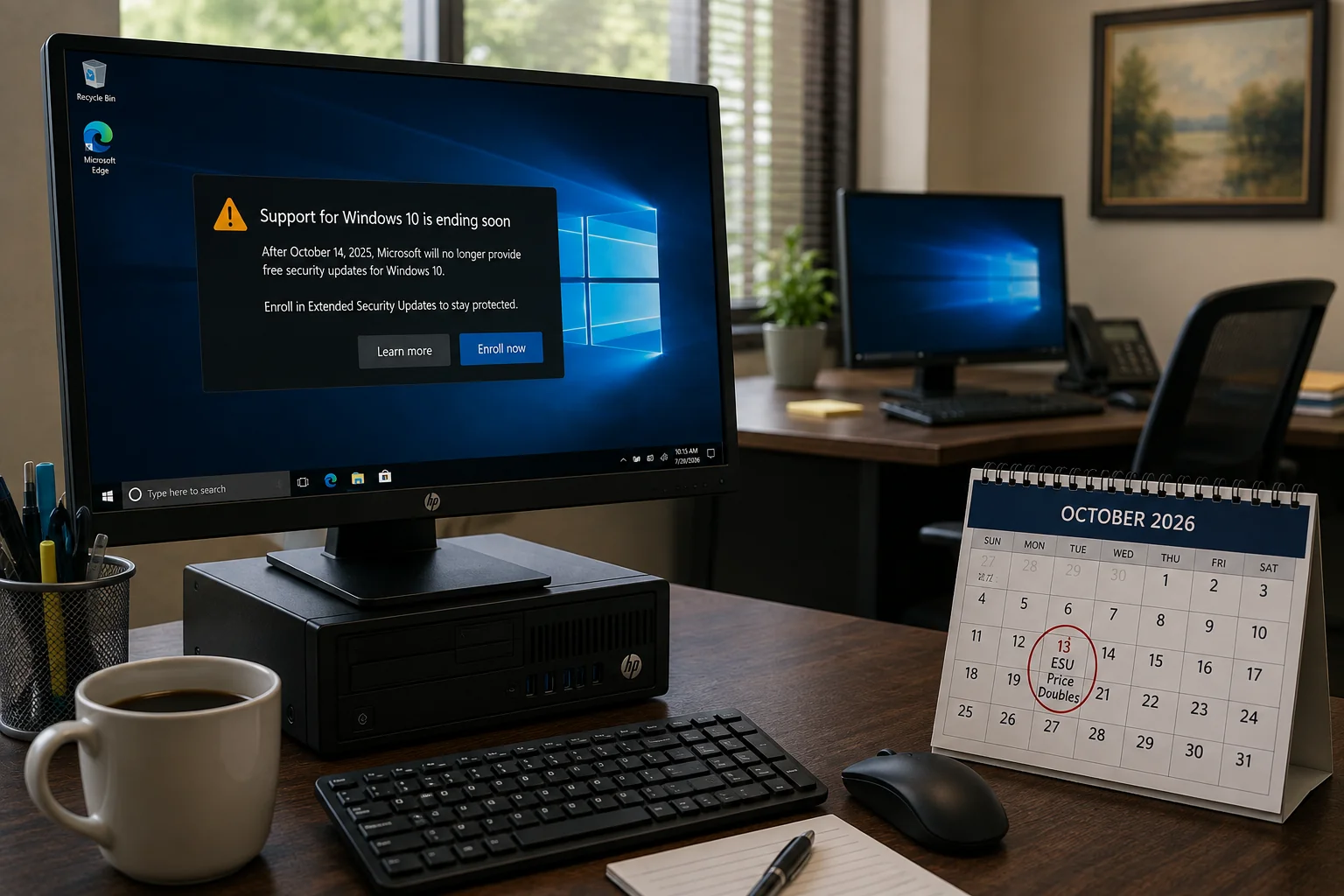
Still have a few computers in the office running Windows 10? October 13 is the day waiting gets a lot more expensive, whether you’ve already paid to keep those machines protected or haven’t thought about it yet.
Here’s the part that catches most business owners off guard. Windows 10 officially stopped getting free security updates back in October 2025. Microsoft gave businesses a way to buy more time through a program called Extended Security Updates, or ESU, and a lot of companies quietly signed up without giving it much more thought. Recent Lansweeper data found that about one in five Windows computers at small and midsize businesses are still running Windows 10. If that’s you, you’re in good company. But “Year One” of that program has an expiration date of its own, and it’s coming up fast.
Why waiting is getting more expensive
ESU isn’t a single purchase. It’s sold in yearly blocks, and Microsoft designed the pricing to get uncomfortable on purpose.
- Year One runs through October 13, 2026, and costs $61 per device.
- Year Two runs through October 2027, and costs $122 per device, double the year before.
- Year Three runs through October 2028, and costs $244 per device.
There’s a catch that makes this more than a simple price increase. The years are cumulative. If you didn’t enroll in Year One and want ESU coverage now, you don’t just pay this year’s price. You owe Year One and Year Two together, since Microsoft won’t sell you Year Two on its own. Wait even longer and the math gets worse from there.
By the time a computer reaches the third and final year available, keeping it “protected” costs $427 total, and that’s before you count the labor to deploy the licenses in the first place. At that price, a lot of businesses are better off putting that money toward a new machine instead.
Why this deadline actually matters
ESU only extends critical and important security updates. It doesn’t add new features, doesn’t fix non-security bugs, and doesn’t come with technical support unless you already have a separate support agreement. It’s a bridge, not a destination. Microsoft built it to buy time for businesses that genuinely need it, not to be a long-term substitute for upgrading.
For a computer that’s a few years old and otherwise doing its job, Year One might have made sense as a stopgap while you planned a replacement. Paying twice as much for Year Two without a plan is a different decision, and it’s worth making on purpose rather than by default.
What to actually do before October 13
You have three real options, and the right one is usually different for different machines in your office.
- Upgrade eligible machines to Windows 11. If the hardware supports it, this is often the cleanest fix and it’s typically free. It also gets you off the ESU treadmill entirely.
- Replace machines that can’t be upgraded. Some older computers simply don’t meet Windows 11’s hardware requirements. For those, this is a natural point to budget for new hardware rather than pay an escalating fee to keep old hardware alive.
- Buy Year Two of ESU deliberately, for the machines that need it. There are legitimate reasons a specific computer can’t move yet, like a piece of specialized software or equipment tied to it. That’s a fine reason to pay for another year. Doing it out of inertia for your whole fleet is a different story.
One thing worth naming honestly: new computer prices have also climbed this year, something we’re already seeing in quotes from our hardware partners. So replacing an older PC isn’t automatically the cheaper option anymore. The better move is to compare the cost of another year of ESU against the age, condition, and remaining useful life of each specific machine, rather than assuming which path costs less.
The one option that isn’t on this list is doing nothing. A Windows 10 computer doesn’t stop working after October 13. It just stops receiving new Windows security updates, leaving newly discovered vulnerabilities unpatched while that computer is still connected to the rest of your network.
If you’re not sure which machines in your office are still running Windows 10, or which ones can make the jump to Windows 11, that’s a quick thing for us to check. We can pull an inventory, tell you exactly where you stand, and help you decide whether each machine should be upgraded, replaced, or kept on ESU for another year before the price changes on October 13.
Frequently Asked Questions
Do I need to do anything if my computers are already on Windows 11?
No. This only affects machines still running Windows 10.
I didn’t pay for ESU on my computer. Do I have to pay going forward?
If you’re on a personal computer, probably not. Consumer ESU is a one-time enrollment, not an annual bill. If you got in for free by syncing your PC settings, redeemed Rewards points, or paid the one-time $30 fee, that coverage runs through October 12, 2027, and there’s nothing more to pay after that. There’s no Year Two or Year Three for consumer devices the way there is for business ESU.
What’s the difference between consumer and business ESU?
They’re different programs. Consumer ESU can be free or a one-time $30 purchase, and it covers a personal device through October 2027, but it isn’t available for devices used in business scenarios, including anything joined to a company’s Active Directory or Microsoft Entra environment or managed through an MDM tool. Business ESU is the one built for those managed devices. It’s sold through volume licensing, has no free tier, and follows the $61/$122/$244 cumulative pricing above. If you’ve gotten ESU for free on your own computer, that’s the consumer program working as designed, and it isn’t an option available to your business machines.
Can I buy just Year Two without Year One?
No. ESU licensing is cumulative, so unenrolled devices owe back payment for every year already passed.
Will my computer stop working on October 13?
No. It will keep running. It just won’t receive new security patches once Year One coverage lapses, which leaves it exposed to any vulnerability discovered afterward.
How do I know if my computer can upgrade to Windows 11 for free?
It depends on the age and specifications of the computer, including its processor and security features such as TPM 2.0 and Secure Boot. We can check this for you in a few minutes per machine.