
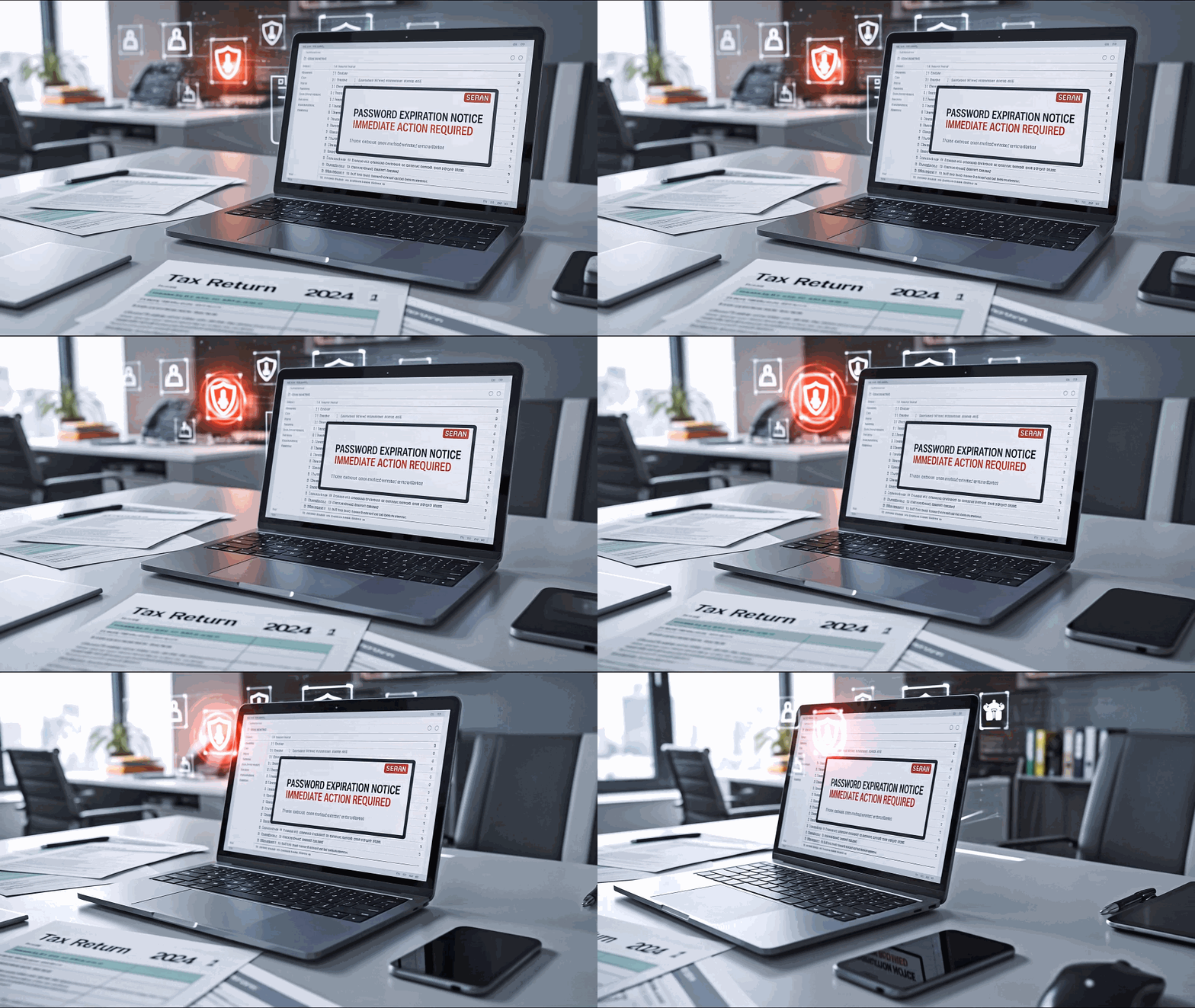
Tax season can be chaotic for tax professionals. You’re drowning in emails, attachments are flying in from every direction, and everyone needs something “quick.” That’s exactly when hackers strike. They know you’re tired, rushed, and probably not going to question that urgent “password reset” email.
Here’s the good news: you don’t need to be a tech expert to protect your firm. You just need to follow a few straightforward steps before things get crazy. Think of this as your pre-season safety check—like making sure your smoke detectors work before leaving for vacation.
Why This Matters Right Now
The IRS has been sending out warnings to tax professionals about email scams and schemes designed to steal client data. Cybercriminals are targeting YOU specifically during tax season because you’re handling tons of sensitive information while working at breakneck speed.
One wrong click on a fake email can hand over access to your entire system. It happens all the time—to good firms, with smart people. A recent case showed how one staff member clicked a legit-looking “password expiration” email, and suddenly hackers had access to 40 clients’ data.
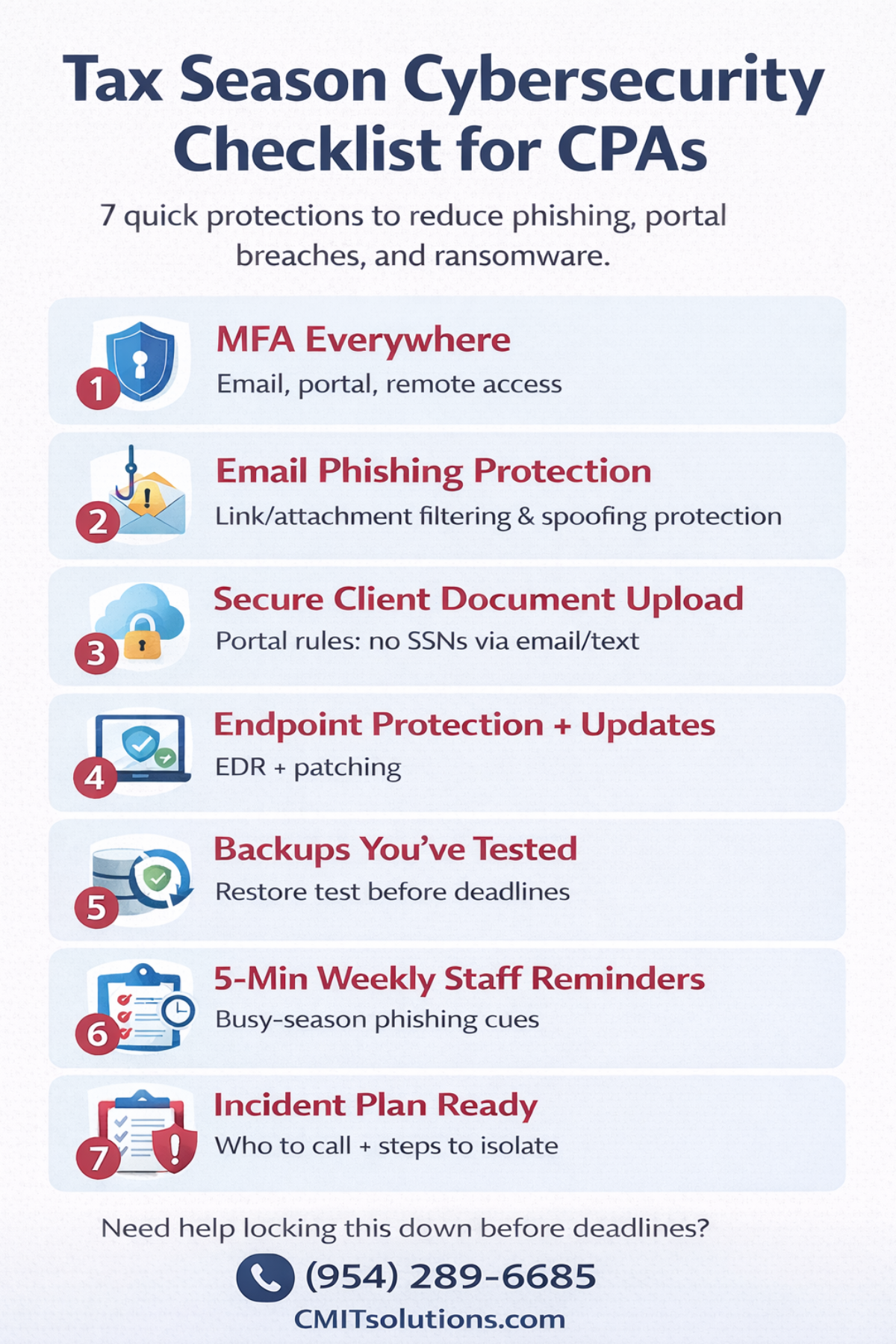
Your Pre-Season Cybersecurity Checklist
Here’s what you need to do before tax season hits full throttle. Don’t worry, we’ll explain everything in plain English.
1. Lock Down Your Logins (Multi-Factor Authentication)
Think of Multi-Factor Authentication (MFA) like having two locks on your front door instead of one. Even if someone steals your password, they still can’t get in without the second “key” (usually a code from your phone).
Turn on MFA for:
- Your email (this is the most important one)
- Client portals
- Any software you use to access files remotely
- Your accounting software
- Any administrator accounts
Pro tip: Use an authenticator app on your phone rather than text messages when you can. It’s more secure. We at CMIT Solutions can help set this up—it takes about 10 minutes and will save you months of headaches.
2. Protect Your Email (Because That’s Where Attacks Start)
Tax season means you’re opening a million attachments. You need guardrails that catch the dangerous ones before anyone clicks.
Ask your local CMIT Solutions tech to set up:
- Something that scans links and attachments before they reach you (like a bouncer at a club checking IDs)
- Warnings on emails from outside your company (so you know when something’s from a stranger)
- Alerts if someone tries to auto-forward your emails somewhere suspicious
The IRS keeps warning about phishing emails for a reason—they work. Making your email smarter is like having a guard dog that barks before you open the door to a stranger.
3. Create a Safe Way for Clients to Send You Documents
Here’s where firms accidentally create risk: clients emailing you photos of Social Security cards, texting W-2s, or sending passwords in the same message as documents. Yikes.
Set up a simple system:
- Use a secure portal where clients upload documents (not regular email)
- Require MFA and strong passwords for portal access
- Give clients a one-page instruction sheet with simple rules: “Upload here. No SSNs by email. No W-2 photos by text.”
Think of it like giving clients a lockbox instead of asking them to leave sensitive documents on your porch. Make the safe way the easy way.
4. Keep Your Computers Updated and Protected
Remember when your phone nags you about updates? Same deal with your computers, but way more important. Those updates patch security holes that hackers love to exploit.
Make sure you have:
- Antivirus/security software that’s actually running and updated
- Automatic updates turned on for Windows, Mac, browsers, Microsoft Office, Adobe, etc.
- Limits on who can install software (not everyone needs that ability)
Ransomware doesn’t care that you’re on deadline. Hackers will absolutely hold your files hostage during your busiest week. Don’t give them the chance.
5. Back Up Everything (And Actually Test It)
Having backups you can’t restore is like having a spare tire that’s flat. Useless. You need backups that actually work when disaster strikes.
The backup rule:
- Keep 3 copies of your data
- Store them in 2 different places
- Keep 1 completely offline or in a way hackers can’t touch
And here’s the part people skip: actually try restoring something from your backup BEFORE tax season. You want to find out if it works now, not when you’re panicking at midnight with a crashed server.
6. Train Your Team (Quick and Often)
Forget those boring hour-long security trainings from last year. During tax season, what works is short, frequent reminders—like 5 minutes every Monday.
Each week, show your team:
- One current example of a scam email going around
- What to look for (suspicious links, weird requests, “urgent” pressure)
- The firm’s rule: If a client or contact asks you to change bank info, reset a portal password, or send sensitive info—verify by phone first, using a number you already have (not one in the email)
Scammers change tactics constantly. Staying sharp means staying current. Regular simulated phishing tests can help train your team to spot and recognize them.
7. Have an Emergency Plan Written Down
If something goes wrong, you don’t want to be Googling “what to do when hacked” at 3am. You want a plan.
Write down (right now, before anything happens):
- Who to call: Your IT person, your cybersecurity insurance company, your lawyer
- How to isolate a compromised computer (unplug it, don’t delete anything—you’ll need evidence)
- What to tell staff and clients (and what NOT to say until you know what happened)
- Where your insurance policy and important passwords are stored
The worst-case scenario isn’t “something bad happened.” It’s “something bad happened and we had no idea what to do, so we made it worse.” A simple one-page plan prevents that.

What Happens If You Skip This?
When accounting firms get hacked, it’s not just an IT problem. Here’s what actually happens:
- Clients lose trust—and they tell other people
- Your firm shuts down during your most profitable weeks
- You’re paying for emergency IT help, lawyers, forensics experts, and notifying every affected client
- Potential fines and regulatory investigations
- Years of reputation damage and insurance headaches
One firm recently had to notify over 220,000 people about a breach. Another paid a $60,000 penalty and had to overhaul their entire security setup. These aren’t giant corporations—these are firms like yours.
The Bottom Line
You don’t need to become a cybersecurity expert. You just need to do the basics before tax season chaos begins. Think of this checklist as preventive maintenance—you’re not trying to build a fortress, you’re just making sure the doors are locked and the alarm works.
Spend a couple of hours now setting these protections up, and you’ll avoid spending months cleaning up a disaster later. Your future self (and your clients) will thank you.
Now go forth and have a secure, smooth tax season. You’ve got this.
Frequently Asked Questions
Q: This sounds expensive. How much will this actually cost?
Good news: most of this costs way less than you think. Many of the protections (like multi-factor authentication and email security settings) are already included in your Microsoft 365 or Google Workspace subscription—you just need to turn them on.
A secure client portal typically runs $20-$100 per month depending on your firm size and features. Cyber insurance (which you should already have) often costs $1,000-$3,000 annually for small firms.
Compare that to one breach: firms often spend $50,000-$250,000+ on incident response, legal fees, forensics, notification costs, and lost business. Prevention is the bargain.
Q: I don’t have an IT person. Can I still do this?
Absolutely. If you don’t have in-house IT, consider hiring a managed service provider (MSP) who specializes in accounting firms, like CMIT Solutions. We understand your workflow and compliance needs. Many will do a security assessment and setup for a one-time fee, then charge a monthly fee (often $100-$300/user) for ongoing support.
You can also ask your current IT provider to implement this checklist specifically. Print it out, hand it to them, and say “I need all seven of these done before tax season.”
Don’t have anyone? Start with the basics you CAN do yourself: turn on MFA for your email, sign up for a secure portal like ShareFile or SmartVault, and make sure Windows updates are running automatically. Then find help for the rest. Seriously, give us a call. It’s what we do for our clients.
Q: How long does it take to set all this up?
If you already have IT support, most firms can knock out this entire checklist in 2-4 hours of focused setup time, spread over a week or two.
Here’s the rough breakdown:
- MFA setup: 15-30 minutes per person
- Email security settings: 1-2 hours (one-time configuration)
- Secure portal setup: 1-2 hours plus training your team and creating client instructions
- Backup testing: 30 minutes to 1 hour
- Incident plan: 1 hour to write it down
The ongoing stuff (weekly team reminders, software updates) takes 10-15 minutes per week once it’s running.
Bottom line: you’ll spend less time on this than you will on one complicated client return—and it protects your entire practice.
Q: What if we’re already in tax season? Is it too late?
Not at all. Start with the highest-impact items right now:
- Turn on MFA for everyone’s email (this alone stops most attacks)
- Set up email warnings for external senders
- Start using a secure portal for new client uploads
- Do one quick 5-minute team reminder about phishing emails
You can tackle the rest (backup testing, endpoint tools, formal training) during slower weeks or after April 15th. Something is always better than nothing.
Q: My clients are going to hate using a portal. Can’t they just email stuff?
Here’s the thing: your clients also hate identity theft, fraud, and finding out their tax documents were stolen. Once you explain WHY you’re asking them to use a portal (“to protect your Social Security number and financial info”), most people get it.
Make it easy for them:
- Send a simple one-page instruction sheet with screenshots
- Offer to walk them through it on a quick call the first time
- Brand the portal with your firm logo so it feels familiar
- Have a backup plan for the two clients who truly can’t do it (maybe they drop off a USB drive, or you schedule a secure video call)
Most clients adapt within one tax season. And the ones who don’t? They’re the ones who would’ve emailed you an unencrypted spreadsheet with everyone’s SSN in it anyway. You’re protecting them from themselves.
Q: Do I really need cyber insurance?
Yes, absolutely. Full stop. Cyber insurance isn’t optional for firms that handle sensitive client data—it’s as essential as malpractice insurance.
If you have a breach, cyber insurance typically covers:
- Forensic investigation (figuring out what happened)
- Legal fees and regulatory fines
- Client notification costs
- Credit monitoring for affected clients
- Business interruption losses
- Ransom payments (if you’re hit with ransomware)
Without insurance, you’re paying for all of that out of pocket while your firm is shut down. Many insurers also provide access to incident response hotlines and experts—you’re not figuring this out alone at 2am.
Talk to your insurance broker about cyber coverage. Make sure it includes first-party costs (your losses) and third-party liability (if clients sue you).
Q: What should I do if I think we’ve already been compromised?
Don’t panic, but do act fast:
- Isolate the affected computer or account immediately (disconnect from internet, don’t delete anything—you need evidence)
- Call your IT person/MSP right away—don’t try to fix it yourself
- Call your cyber insurance company’s incident hotline (this should be in your policy documents)
- Don’t communicate about the incident via the potentially compromised email account
- Preserve all logs and screenshots
- Don’t tell clients anything specific until you know what happened—saying the wrong thing early can create legal problems
The worst thing you can do is ignore warning signs or hope it goes away. The second worst thing is to start randomly deleting things or resetting passwords before your IT team can investigate.
This is why having that incident plan written down (checklist item #7) matters—you won’t be Googling “what to do” in a panic.
Q: I’m a solo practitioner. Is this overkill for a one-person firm?
Nope. Hackers don’t care about your firm size—they care about access to tax returns, Social Security numbers, and bank account info. A solo CPA with 50 clients is just as valuable a target as a 20-person firm.
In fact, solo practitioners are sometimes MORE targeted because attackers assume you have fewer protections in place.
The good news: as a solo practitioner, implementing this stuff is actually EASIER. You only need to set up MFA for yourself, train yourself on phishing red flags, and choose one secure portal. Start small, but start.
Q: How do I know if my current setup is secure enough?
Ask yourself these quick yes/no questions:
- Do I need to enter a code from my phone (or an app) to log into my email? (MFA check)
- Do client documents come through a secure portal, or do people email me W-2s and SSNs? (Client intake check)
- If my computer died right now, could I restore client files from a backup within 24 hours? (Backup check)
- Does everyone on my team know what to do if they get a suspicious email? (Training check)
- If we got hacked tomorrow at 3am, do I know who to call and what to do first? (Incident plan check)
If you answered “no” to more than one of these, you have gaps to address. If you answered “no” to all of them… well, now you have a roadmap.
You can also hire a security consultant to do a formal assessment (usually $2,000-$5,000 for small firms), which gives you a detailed report of exactly what needs fixing.
Q: What’s the ONE thing I should do right now if I can only do one thing?
Turn on multi-factor authentication (MFA) for your email. Right now. Stop reading and do it.
Email is the skeleton key to everything else—your accounting software, your client portal, your bank accounts, password resets for other systems. If someone gets into your email, they can get into everything.
MFA makes it exponentially harder for attackers to take over your email, even if they steal your password. It’s free (already included in Microsoft 365 and Google Workspace), takes 15 minutes to set up, and prevents the vast majority of account takeover attacks.
If you do nothing else from this entire blog, do that.
Still have questions? Talk to your cyber insurance broker, or reach out to us at CMIT Solutions.